
First: consider why you are adding this individual to the account.
- If they require a log in access to our Client Portal, they are a User
- If they need email notifications from us, they are a Contact
- If they need to log in as well as receive emails, they need to be added as a User as well as a Contact
Note: Email Notifications are for when a party must receive ALL email notifications under a certain category, for example, billing or technical support. If a User opens a support ticket themselves, they are automatically cc’d on all responses. In a support ticket, you can also add a cc to the ticket and they will be notified from us. By adding a contact to get Email Notifications they will receive any and all emails under that category whether they have opened the support ticket or have been cc’d when the ticket was created.
To add a User or Contact
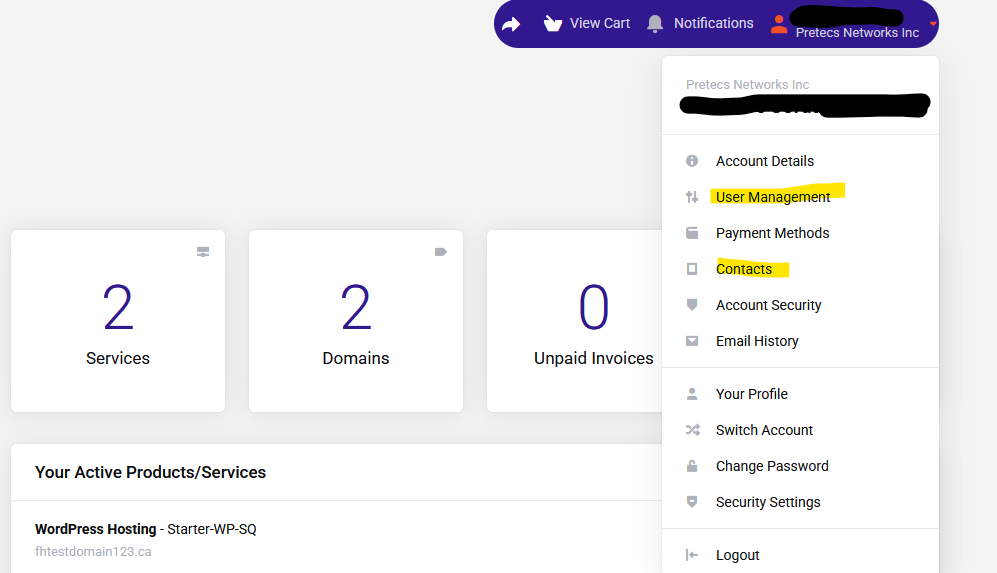
- Click on your name at the top right side of the client area.
- Click on the drop down arrow to access this menu.
- The following menu will appear:
To add a User
(has a log in access to your Client Account with delegated permissions)
- Select User Management
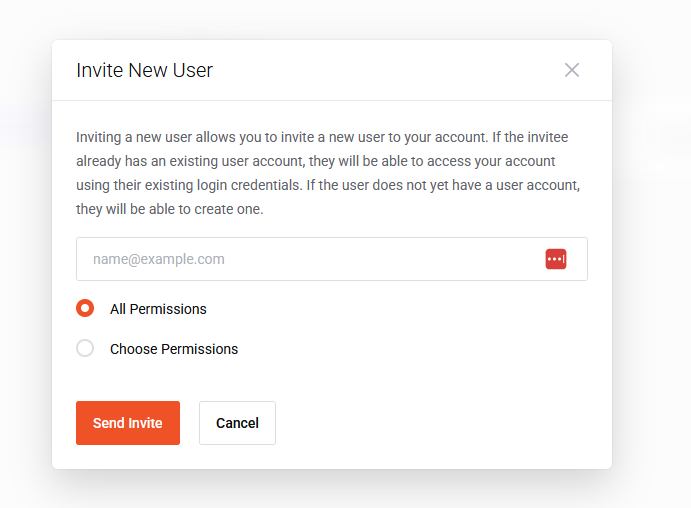
- All current Users will be listed there. Above the top right hand side of this list there is an orange button that says "Invite New User", click it to bring up the form pictured below.
- Enter their email address.
- Determine the Permission levels you wish for them to have. We recommend choosing the least amount of privileges as necessary for this user to do their job: this is an industry standard for good security.
- Once you have selected the desired privileges, click "send invite".
(the permission level list is fairly self explanatory to what that allows, but if someone requires access to the control panel – cPanel – please click Perform Single Sign On)
To Add a Contact
(Used for having Email Notification Preferences that do not require a log in with a User, or for domain registrations)
- Click on Contacts
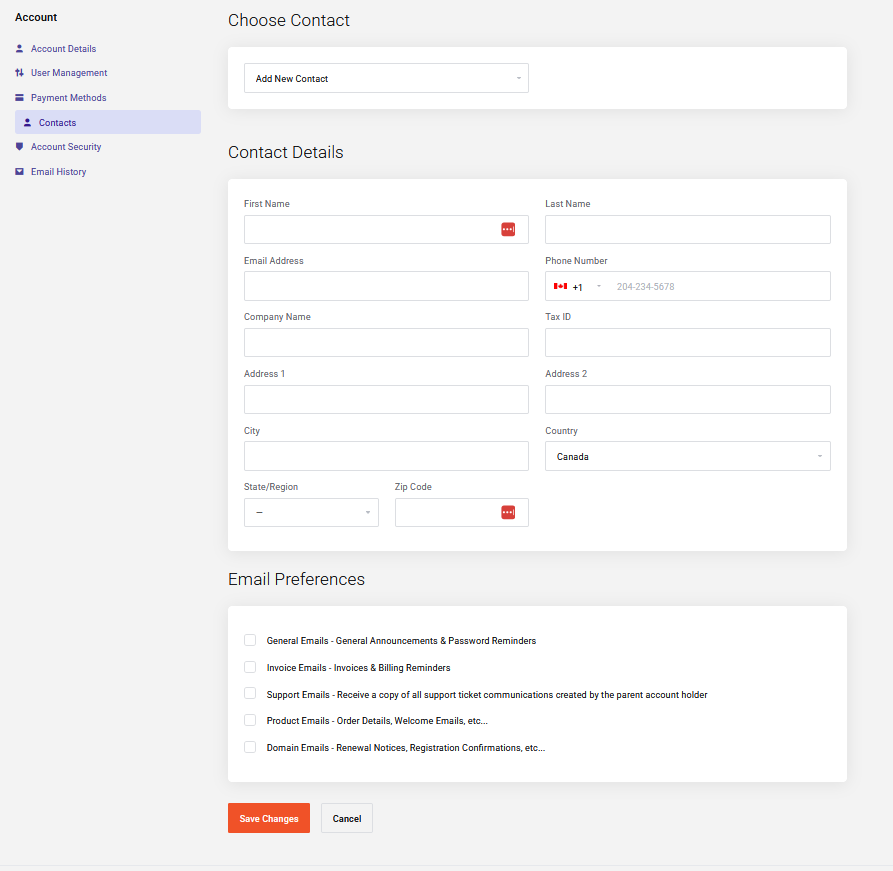
- If other Contacts already exist, select from the drop down at the top Add New Contact
- Complete the information in the screen and select any Email Preferences you wish for them to have.
- Press Save
(If you require a User to also have all Email Notifications for a specific subject, you will need to Invite the User AND create a Contact)
When turning on any of the Email Preferences, the Contact will receive all communication relating to those emails, whether they have initiated the email/ticket as described above or not. It is only encouraged to use these options if someone needs to have all communication pertaining to that.
Email Notifications
When turning on any of the following, the contact will receive all communication relating to those emails, whether they have initiated the email/ticket as described above or not. It is only encouraged to use these options if someone needs to have all communication pertaining to that. For example, if you have a billing person that handles invoicing using the Invoice Emails so they get copied on all billing emails is encouraged.
- General Emails - General Announcements & Password Reminders
- Product Emails - Order Details, Welcome Emails, etc...
- Domain Emails - Renewal Notices, Registration Confirmations, etc...
- Invoice Emails - Invoices & Billing Reminders
- Support Emails - Allow this user to open tickets in your account