
How to Install a Let’s Encrypt SSL Certificate in cPanel
Overview
Let’s Encrypt is a free, automated, and open Certificate Authority operated by the Internet Security Research Group (ISRG).
Recent versions of cPanel have replaced the SSL/TLS Status page with a redesigned SSL/TLS Certificates interface. This interface includes a step-by-step Wizard that makes it easy to issue and install a free Let’s Encrypt SSL certificate for your domain.
Note: If you are looking for the old “SSL/TLS Status” page, it has been replaced. The new SSL/TLS Certificates feature covers the same functionality under an updated layout with a dedicated Wizard tab.
Step-by-Step Instructions
-
Log in to cPanel.
You can do this two ways:
- Directly, by appending ":2083" to your domain (such as https://example.com:2083), or,
- Through your client account at manage.fullhost.com. Log in, click on "products", click on the hosting plan containing your website, and on the left hand side under the "actions" menu, click the text that says "log into cPanel". -
Open SSL/TLS Certificates.
From the cPanel home screen, scroll down to the Security section and click SSL/TLS Certificates. -
Go to the Wizard tab and select your domain.
Inside the SSL/TLS Certificates interface, click the Wizard tab. A list of all domains on your account will appear. Tick the checkbox next to the domain you want to secure, then click the Continue button.
Below: your screen should look like this. Red boxes highlight the website elements mentioned in this step.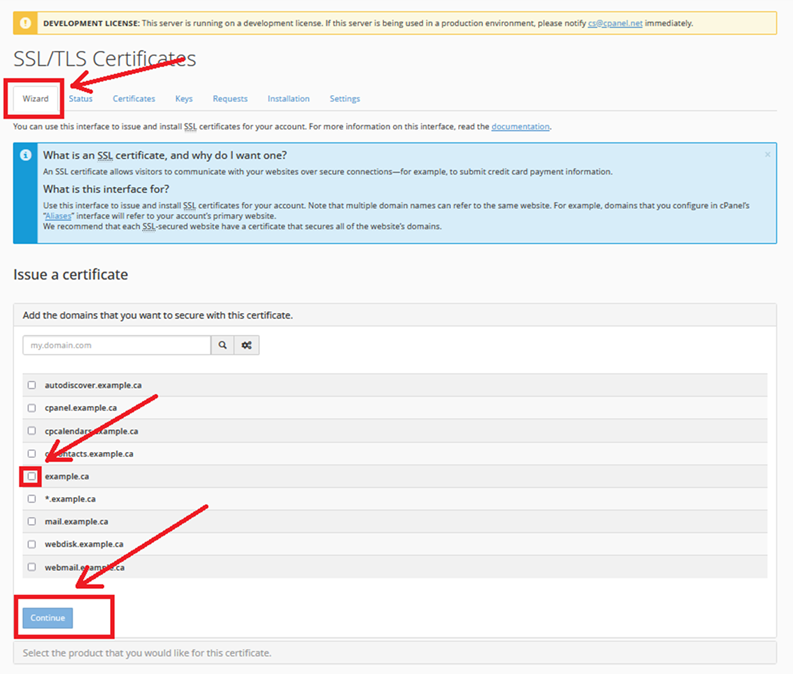
-
Choose Let’s Encrypt Certificate.
After clicking Continue, the interface expands to show the product selection step. Click the Let’s Encrypt Certificate button. (The “Request a basic certificate” link below it is for paid certificates — select Let’s Encrypt for the free option.)
Below: your screen should look something like this.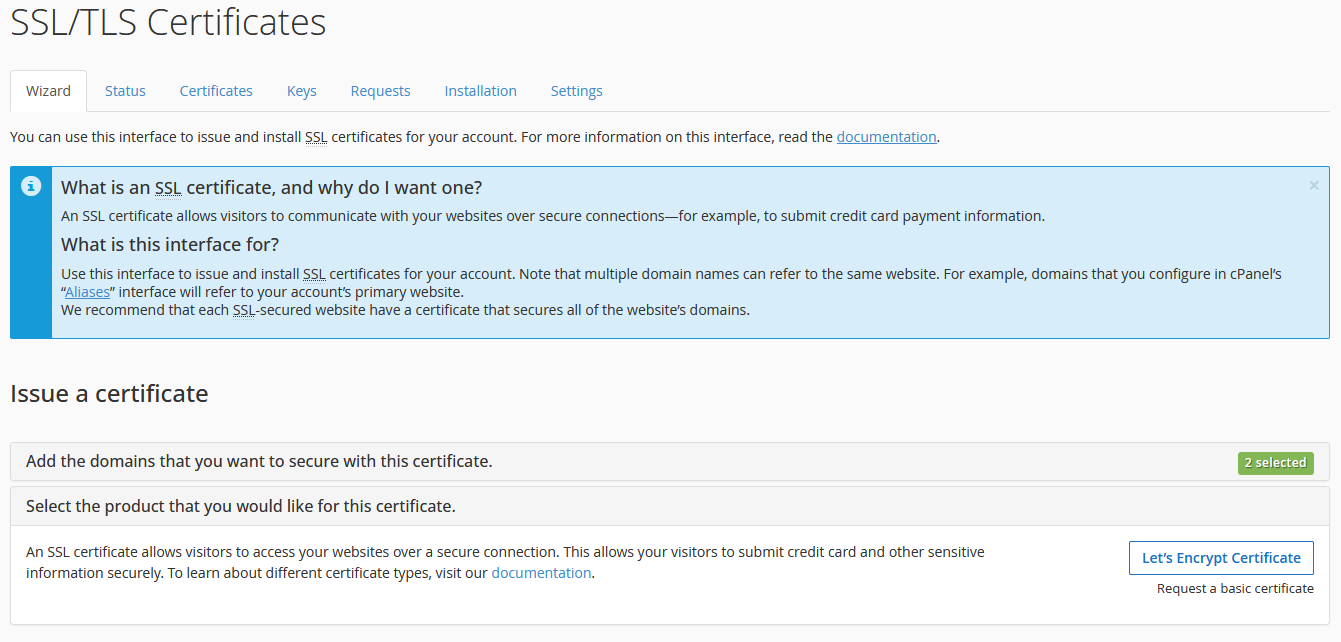
-
Acknowledge and confirm.
A confirmation dialog will appear. Read the notice — the system will automatically renew your certificate 30 days before it expires. Tick the checkbox to acknowledge the Let’s Encrypt Terms of Service, then click Continue to issue the certificate.
Below: your screen should look something like this. Web elements mentioned above are highlighted in red.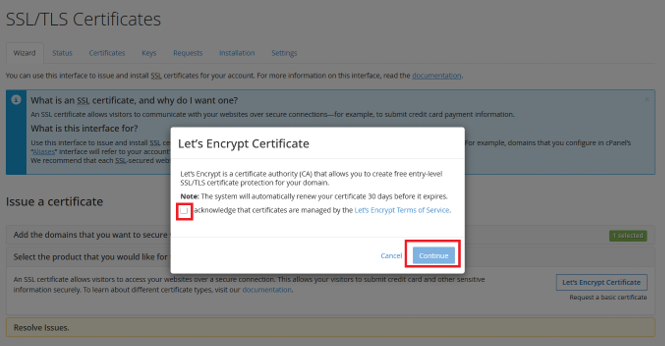
-
Done. cPanel will now request and install the certificate automatically. This typically completes within a few minutes.