
How to Redirect HTTP to HTTPS in cPanel
Intro
Redirecting HTTP traffic to HTTPS ensures all visitors access your website securely, acting as a defence against snooping on web traffic. HTTPS encrypts data, improves browser trust, and is required for modern web standards and SEO best practices.
Keep in mind that HTTPS only is only one step in security. Storage of highly sensitive data such as passwords or credit card details require additional measures and are not a part of this article.
This guide explains three supported methods to force HTTPS in cPanel:
- Using the Force HTTPS Redirect option
- Using the cPanel Redirects feature
- Using the .htaccess file
Before enabling the redirect, make sure that the following requirements are met:
- A valid SSL certificate is installed on the domain
- The website loads correctly using https://yourdomain.com
Method 1: Force HTTPS Redirect from cPanel (Recommended)
This is the simplest and safest method for most users.
- Log in to cPanel.
- Go to Domains.
- Locate the domain you want to secure.
- Under the Force HTTPS Redirect column, toggle the switch to On.
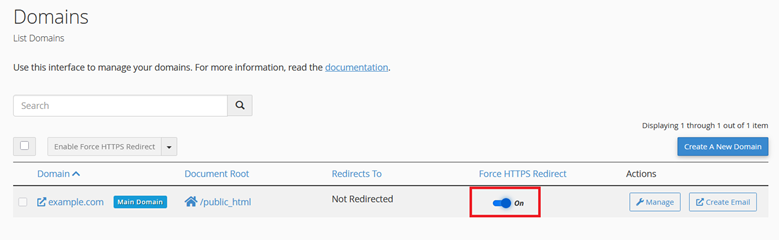
Once enabled, cPanel automatically configures the redirect.
Method 2: Redirect HTTP to HTTPS Using cPanel Redirects
- Log in to your cPanel account.
- In the cPanel search bar (top right), type Redirects and open it, or navigate to Domains → Redirects.
- Under Add Redirect, configure the following:
- Type: Permanent (301)
- https?://(www)?: Select the domain you want to redirect
- Path
Leave as: / - Redirects to Enter the HTTPS version of the domain: https://yourdomain.com/
- www. redirection: Choose the appropriate option
- Redirect with or without www. (recommended)
- Select Only redirect with www if your site uses www
- Select Do Not Redirect www if not
- Check the Wild Card Redirect option to ensure all pages and sub-paths redirect properly.
- Click Add.
Method 3: Redirect HTTP to HTTPS Using .htaccess
This method involves manually setting up the HTTPS redirect in the .htaccess file.
To find your .htaccess file:
- Log in to cPanel.
- Open File Manager.
- Navigate to the website’s document root (for example, public_html) and locate the .htaccess file. If you do not see it, enable Show Hidden Files from File Manager settings.
Edit the file and add the following code at the top:
<IfModule mod_rewrite.c>
RewriteEngine On
RewriteCond %{HTTPS} off
RewriteCond %{REQUEST_URI} !^/\.well-known/acme-challenge/[0-9a-zA-Z_-]+$
RewriteCond %{REQUEST_URI} !^/\.well-known/cpanel-dcv/[0-9a-zA-Z_-]+$
RewriteCond %{REQUEST_URI} !^/\.well-known/pki-validation/[A-F0-9]{32}\.txt(?:\ Comodo\ DCV)?$
RewriteRule ^(.*)$ https://%{HTTP_HOST}%{REQUEST_URI} [L,R=301]
</IfModule>
Save the file.
Important Notes
- Use only one method at a time
- If Force HTTPS Redirect is enabled, do not add a duplicate .htaccess rule.
- Always keep a backup of .htaccess before editing.
- Redirects take effect immediately, but browsers may cache older results. Test in incognito mode if needed.