
We have many nameservers, located across the world for a robust level of redundancy. Where you manage your DNS records, as well as which nameservers you must use, depends on which plan your web content is hosted with.
In this article we’ll tell you where to set your nameservers, where to set your zone files, and which nameservers correspond to which zone manager.
How to Set Your Nameservers
When you register a domain, you must tell the registry where the zone file for your domain lies - the authoritative nameserver. You must set your nameservers via whoever you registered your domain from. Here is where to go if your domain is registered through us:
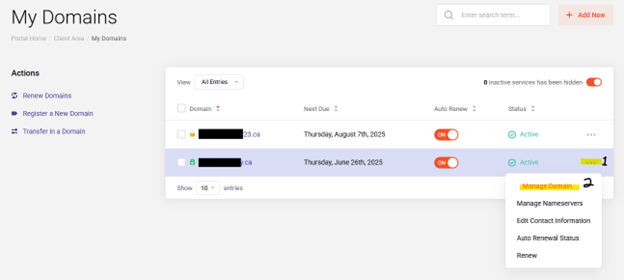
If your domain is registered through us, log in to your client area (manage.fullhost.com), and from your dashboard click on “domains”. After this, you’ll arrive at the page pictured below. Click on the “…” (labeled ‘1’ in the picture below) for the domain name in question and select “manage” from the drop-down menu (‘2’ below).
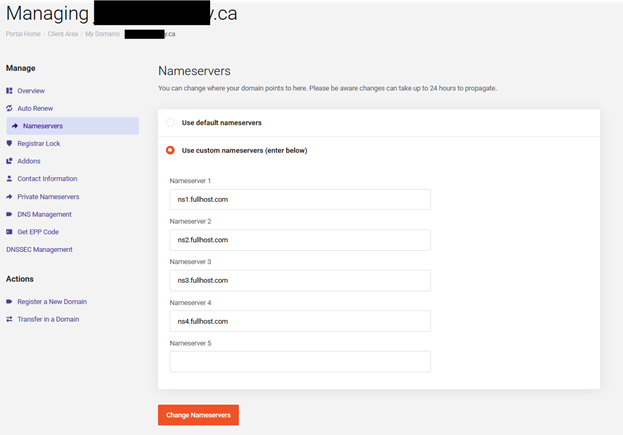
You’ll arrive at the domain configuration area. On the left side there is a menu titled “Manage”. Under this menu there is a link for “Nameservers”. Click this link, and you’ll arrive at the page below. Click “Use custom nameservers (enter below)” to specify your desired nameservers.
Where to Set Your DNS Records, and For What Nameservers
As previously mentioned, where you manage your DNS records depends on what products you have with us. Some products come with zone managers, and some don’t. Keep in mind that different zone managers correspond to different nameservers (see above for directions on changing your nameservers). We will explain as we go.
Please note that at the moment we do not have any solutions for hosting DNS records with no hosting product unless the domain is registered with us.
I Have Domain Name Registration Only
Or, domain registration plus VPS or Managed VPS
If the only thing you have purchased with us is domain registrations, you must either…
- Opt-in to have us host your DNS records on our nameservers (continue reading)
- Set the nameserver where your DNS records are managed elsewhere
Opting in to DNS Management as a Domain Add-On
First you need to opt-in to the DNS management add-on for your domain. This is free. You can do these two ways:
- By adding “DNS Management” to your shopping cart while ordering your domain.
- If you already purchased your domain, go to your client area (manage.fullhost.com), click on “domains”, click on the “…” far to the right of the domain name in question and select “manage”. Click “addons”. From there order “DNS Host Record Management”.
Nameservers for the domain add-on DNS manager
Set your nameservers to the following if you are using the DNS manager domain add-on:
- ns10.fullhost.net
- ns11.fullhost.net
- ns12.fullhost.net
(see section: “How to Set Your Nameservers” above for help finding where to set your nameservers)
Zone manager location
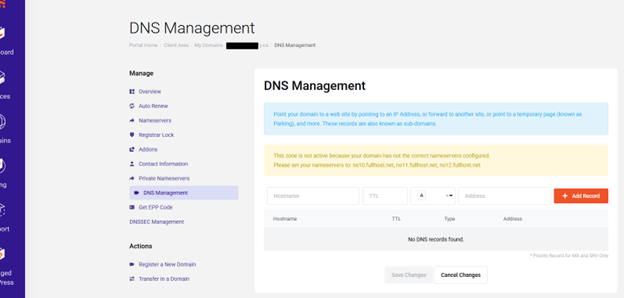
From the same page as you set your nameservers, click “DNS management” on the left-hand side of the page (under the “manage” heading). You should see the screen below.
I Have Elastic Hosting
If you have an Elastic Hosting plan, it works best if you use the cPanel zone manager. This is because a lot of the software that’s included with cPanel in your hosting plan will set your DNS records for you.
What nameservers should I use for the Elastic Hosting zone manager?
For the Elastic Hosting cPanel zone manager, you must set your nameservers to the following:
- ns1.fullhost.com
- ns2.fullhost.com
- ns3.fullhost.com
- ns4.fullhost.com
Where do I set my DNS records?
To find the zone manager, do the following from your client portal dashboard:
- Click on the “services” box
- Click on the elastic hosting package with the website you want to manage
- Click “Log in to cpanel” on the left-hand side of the page, under the “actions” list
- Using the search bar in the top right corner of the page, enter “Zone Editor” and click the first result.
I Have Reseller Hosting
Reseller hosting is just another type of cPanel hosting. The only difference is that different nameservers are used, and in addition, you must go through a different dashboard to find the cPanel login required.
What nameservers should I use?
Use the following nameservers for reseller hosting:
- ns1.ispcontrol.net
- ns2.ispcontrol.net
- ns3.ispcontrol.net
- ns4.ispcontrol.net
Where do I set my DNS records?
Follow these steps from your client area dashboard (manage.fullhost.com)
- Click on the “services” box
- Click on your reseller hosting package
- Under the “actions” menu on the left-hand side, click on “Log in to WHM”
- There is a search bar on the top right corner of the page. Search for “List Accounts” and click the link you find.
- Find the cPanel account whose DNS records you wish to modify and click on the cPanel icon to log in to the account.
- Using the search bar in the top right corner of the page, enter “Zone Editor” and click the first result.
I Have WordPress Hosting
What nameservers do I use?
Use the following nameservers for WordPress Hosting
- wpns1.fullhost.com
- wpns2.fullhost.com
- wpns3.fullhost.com
- wpns4.fullhost.com
Where can I set my DNS records?
From your client area dashboard (manage.fullhost.com)…
- Click on the “services” box
- Click on your WP Squared hosting package
- Under the “actions” menu on the left-hand side, click on “Log in to WP Squared”
- On your WP Squared dashboard, click on the ellipsis to the right of the domain in question, and select “Manage Zones” from the menu that appears
- Click “Zone Editor”
I Have MailWire
MailWire does not come with it's own zone manager. If mailwire is the only product you have with us, you will have to either find your own DNS management solution if your domain is registered elsewhere, or opt in for dns management: see section above: "I Have Domain Name Registration Only"
For DNS direction on MailWire, see this article: Configuring your DNS Records
I Have a Virtual Machine
If your domain is registered with us, you can opt in to having a DNS manager for free. See section: “Domain Name Registration Only” above. Otherwise, you must find your own zone management solution or transfer your domain to us to use our DNS manager domain add-on.
I Have a Managed VPS
If your domain is registered with us, you can opt in to having a DNS manager for free. See section: “Domain Name Registration Only” above. Otherwise, you must find your own zone management solution or transfer your domain to us to use our DNS manager domain add-on.