
Top Bar
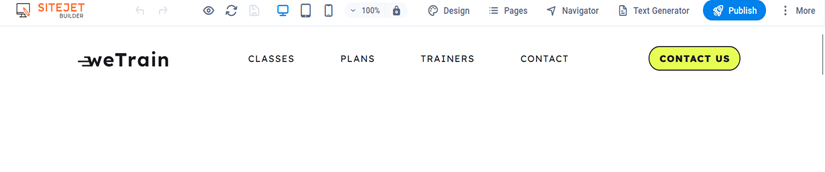
- Undo/Redo: These buttons allow you to undo or redo recent changes made on the page.
- Preview: This button allows you to preview your page as it would appear live on your website. While previewing the website you have the below options
- Open preview Website: This option opens your website in a new browser tab, allowing you to see it as it would appear live on the internet. You can use this to test functionality, check the overall look and feel, and ensure everything is working correctly.
- Presentation Mode: This option opens your website in a special "presentation mode" that hides the Sitejet Builder interface and other elements. You can preview your site in Mobile, Tablet and Desktop format at the same window. This allows you to focus solely on your website content and present it to others without distractions.
- Share Presentation Link: This option generates a unique link that you can share with others to allow them to view your website in presentation mode. This is useful for sharing your work with clients, collaborators, or other stakeholders without needing to grant them access to the Sitejet Builder itself.
- Save: This button saves your current progress on the page.
- Zoom in/out: These buttons allow you to zoom in or out on the page you're editing.
- Design: This section allows you to customize the overall look and feel of your website, including themes, fonts, colours, and layouts.
- Pages: This section lets you create, edit, and manage your website's pages. You can see a list of existing pages, add new ones, and use drag-and-drop functionality to arrange them.
- Navigator: Helps to manage the elements of your page. This allows you to easily Navigate between different pages, section, and blog posts within your website.
- Text generator: The AI text generator is a handy tool that can assist you with creating content for your website. Provides suggestions for text content based on specific topics, keywords, or prompts you provide.
- Publish: This button publishes your page live on your website. Be cautious with this button, as it makes your changes visible to everyone.
More Menu
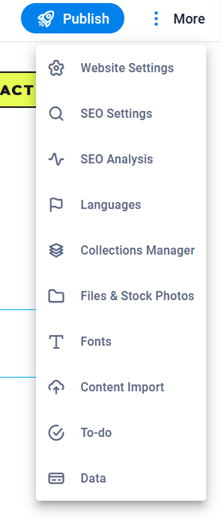
- Website Settings: This is where you may update the website's logo globally, as well as add a favicon and a preview website image.
- Favicon is short for "favourite icon", and it's the little icon or logo next to the title of a website in your browser tabs, bookmarks, and favourites. Its purpose is to help people find their saved favourite pages faster.
- Data: Contact data of the website can be added here it will be updated automatically across the site.
- SEO Settings: Here, you can set your websites default title, description, and keyword. This acts as a base for individual page optimization. You can also add HTML codes that will be places in the tags of your website. Please note the website will not function if you add code with error.
- SEO Analysis: Sitejet Builder offers built-in SEO analysis tools to help you assess your website's search engine optimization performance
- Language: Set your website's primary language: This affects the language displayed on your website and the language options available to visitors. If your theme supports it, you can enable additional languages and create separate versions of your website for different audiences.
- Collection Manager: This tool helps you organize and manage various content elements you use on your website and create dynamic contents like blog.
- Files & Stock Photos: Upload your own images and files. Use images, videos, PDFs, or other files for your website content. You have access to a library of free or paid stock photos for your website.
- Fonts: Change your website's default fonts. Choose from different font families and styles to match your brand and website design. you can upload your own fonts for a more unique look.
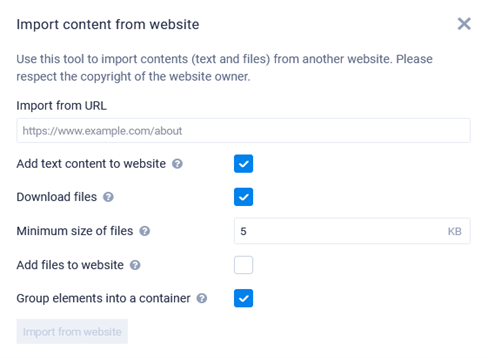
- Content Import: If you want to use files, images, and content from an old website, you can simply use this feature to import the content directly to your website.
- To-do: List down things you need to do for your website project. Organize your tasks and track their progress.
Left Side Menu
Favourites
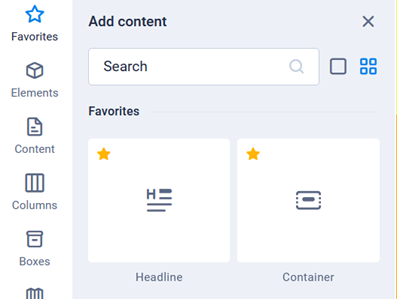
- This section allows you to save frequently used elements for easy access and reuse, like a bookmarking feature.
- You can drag an element from another section and drop it here to add it to your favourites.
- This helps you avoid having to search for the same element repeatedly while building your website.
Elements
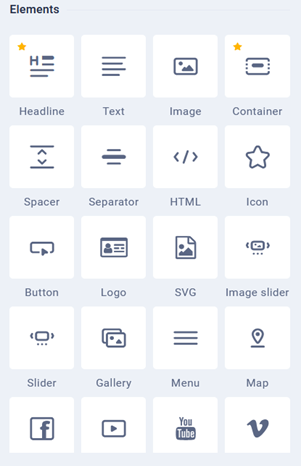
This section provides a library of pre-designed elements you can drag and drop onto your pages to build your website's content.
It contains basic building blocks like:
- Text blocks
- Buttons
- Images
- Videos
- Icons
- Links and more.
Content
This section is dedicated to managing pre-built content blocks or templates:
- Pre-designed layouts containing various elements arranged in a specific way, typically used for specific purposes.
- Ready-made layouts for displaying customer testimonials on your website.
Columns, Boxes, Accordion, Tables, Features:
These are all layout elements that help you structure your website content in different ways.
- Columns: Divide your page horizontally into multiple sections for better organization.
- Boxes: Create defined areas with borders and background to highlight specific content.
- Accordion: Display collapsible content sections, allowing users to expand and view information selectively.
- Tables: Present data in a structured format with rows and columns.
- Features: This could offer pre-designed sections to showcase your products, services in a visually appealing way.
Images and Slider
- Images: Allows you to upload, manage, and insert images into your website content.
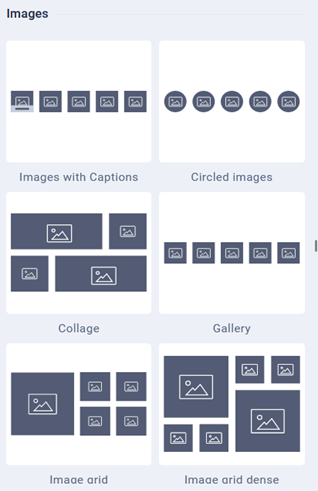
- Slider: Create a rotating carousel of images for displaying multiple visuals on a single element. Users can swipe to view different images.
Header and Footer
Header: This section allows you to design and manage the topmost area of your website, typically containing your logo, navigation menu, and other important elements.
Footer: This section manages the bottommost area of your website, often containing copyright information, contact details, and additional links.
Forms
Allows you to create various types of forms for collecting user information, feedback, or orders on your website, such as:
- Contact forms
- Signup forms
- Survey forms
- Reservation forms
Marketing
This section offers tools or functionalities related to marketing your website. You can post your company advertisements and different promotional activities.
Collection
- Content Collection: Manage content elements like blog posts, products, or team members in a structured way and use them across your website as needed.
- Use pre-designed sections with content and styling that you can easily add to different pages.
Bottom: Breadcrumb
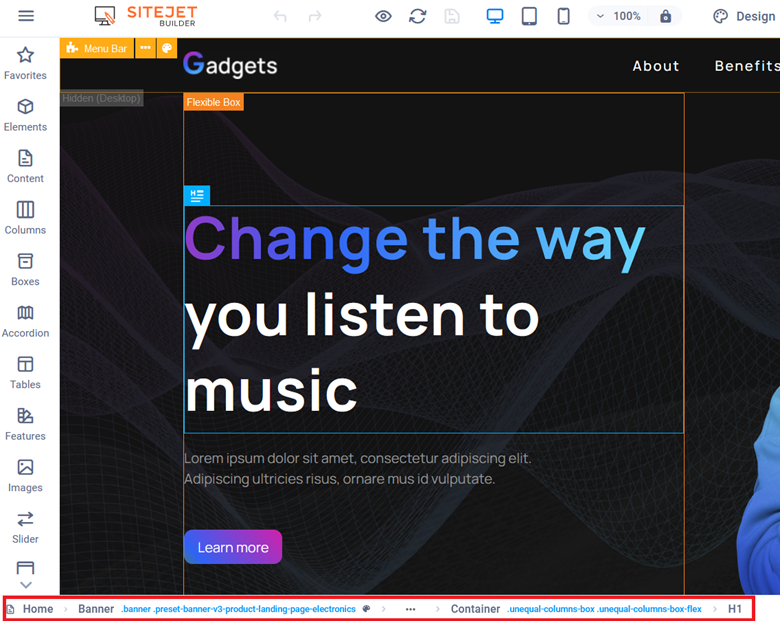
The list of links you see in the bottom menu of Sitejet Builder is called a “breadcrumb” – it is a navigational aid that helps you visualize your website's structure and easily navigate between different areas of the site.
- Breadcrumbs display a hierarchy of your website's content, showing the current page's position within your website structure.
- They visually represent the path you took to reach the current page, typically starting from the homepage and leading down to the specific page you're on.
- When you double-click an element, its settings will be shown. After the element type, you will also see the classes that are linked to the element in blue. Moreover, breadcrumbs help keep layouts tidy. It is simple to identify several containers inside of one another and assess if they are truly necessary.
On the bottom right side, there is a timer that tells how long you've been in the CMS this session. The code button, located next to the timer, provides access to the website's code, which includes CSS, JavaScript, and HTML. Here, you may examine or change the project code, including predefined code, or create your own.