
There are two steps involved in creating a website backup.
A)Create the website File Backup
B)Create the Database Backup
Creating Website File Backup
1. Log in to cPanel
2. Open File manager

3. To create a backup of the main domain files, you should create a zip archive of public_html. To create a file backup of an addon domain, you should create a zip archive of the corresponding website directory. In this demo, we are creating the backup of a main domain fullhostdemo.ca. So, we will be archiving the public_html directory. Select the public_html directory, press the right button on your mouse, and then click Compress

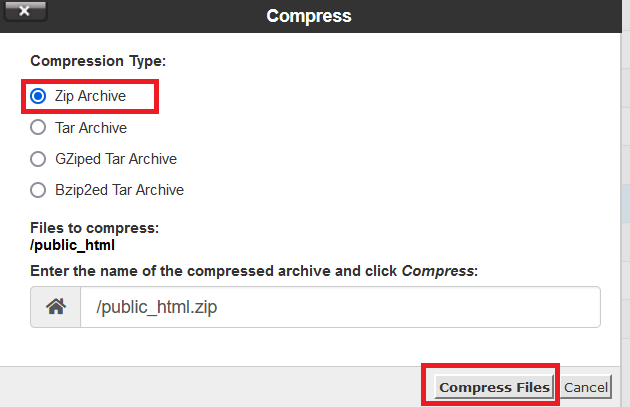
Select Zip Archive and click Compress Files. This will create a zip archive public_html.zip in your web directory.
If you ever want to restore the files from this backup, you can delete the public_html folder and unzip the public_html.zip backup. To unzip the file, select the file public_html.zip , press the right button on your mouse, and click Extract.
Create the Database Backup
1. Log in to cPanel
2. Under Databases, click phpMyAdmin
3. Select the website database and click Export. Now select SQL as Format and click Go
This will download an SQL backup of the database. If you want to restore the database, you can import this backup through phpMyadmin.