
A staging site is a test site that you can use to “safely” test plugins/themes, updates, or changes before going live. You can use the cPanel “Wordpress manager by Softaculous” feature to create a staging site for your WordPress.
If you are on a managed or self-managed cloud server, this method of creating a staging site will only work if you have a Softaculous license. Please contact our support department if you are unsure about this.
To get things started, log in to your cPanel account
Here, you will have to create a subdomain for the staging site, "staging.yourdomain.com". In this guide, we will be using the example “staging.fullhost.dev” to create a staging site for the domain “fullhost.dev”
cPanel > Subdomains >Create a Subdomain

This will create a subdomain staging.yourdomain.com, which we will then use to create a staging site.
Now go to cPanel > WordPress manager by Softaculous
Here, you can see your WordPress installations under “Installations”
If your WordPress was not installed through “Softaculous”, the installation won’t be visible here. You can import your existing WordPress site by clicking on “Scan” and then “Start scanning for installations”.
If the site you are trying to make a staging site for is already visible in WordPress manager, skip the import steps given below.
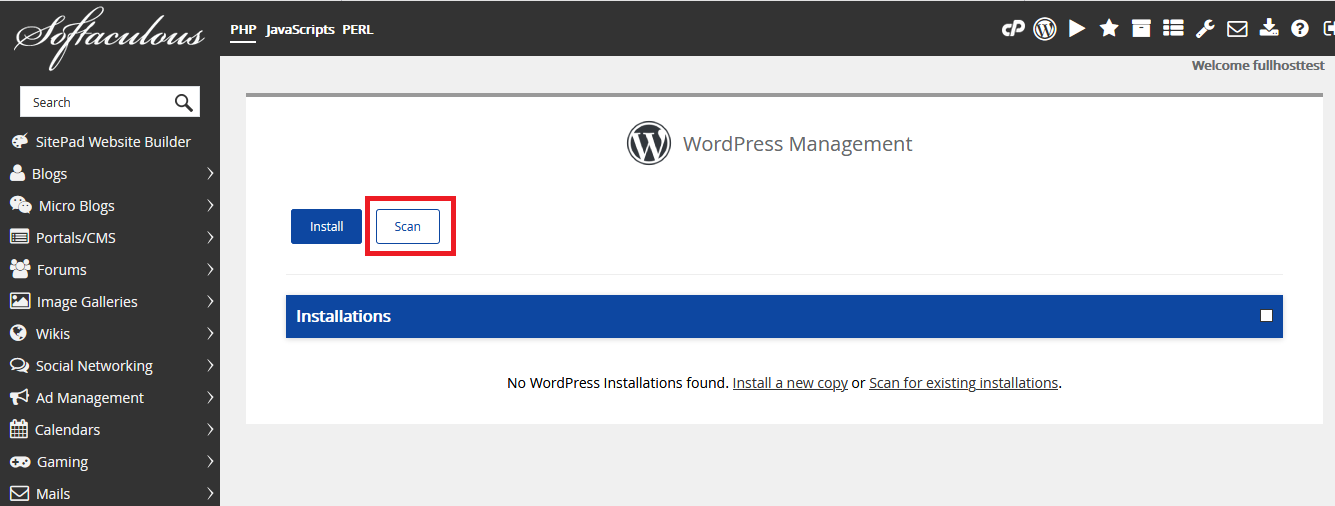

The scan will import existing undetected WordPress installations in the account and you will see a message “Congratulations, the installations listed below have been successfully imported into Softaculous. You can now manage the installations via Softaculous.” once this process has been completed.
Click on the WordPress icon in the top bar to go back to the WordPress manager page.

Here you can see a drop-down arrow on the right. Click on this arrow to expand the section and then click “staging”.

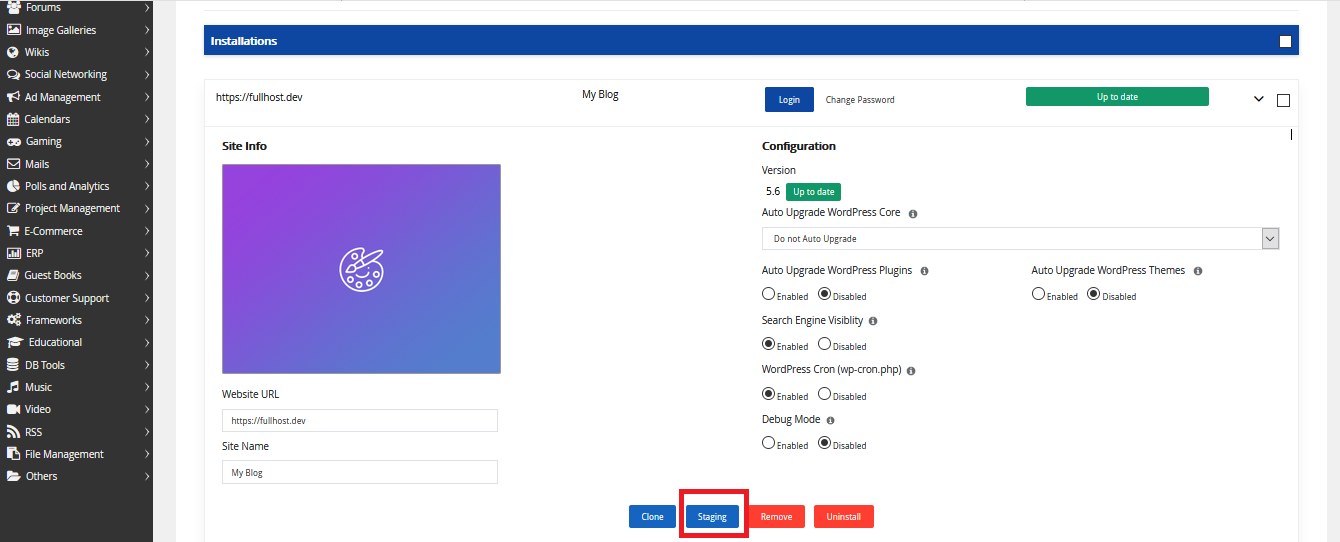
For protocol, select https, under "Choose URL" and select the subdomain you previously created, "staging.yourdomain.com". "In directory" should be empty (if there is a "wp", remove it).
Fill out an appropriate database name and click "Create staging"

Congratulations! You have made a staging site for your website. You can now access the staging site at staging.yourdomain.com. You can access the WordPress dashboard at staging.yourdomian.com/wp-admin using the same username and password as the main domain.