
Regardless of whether you're MailWire using Microsoft Outlook 2016 or Outlook 2019 for Windows, setting up an account is exactly the same.
Adding a MAPI Account to Outlook
- Open Outlook.
- Either use the default Profile Outlook gives you (named, appropriately enough, "Outlook") or create a new Profile for this account.
- If you want, you can choose to have Outlook prompt you for a specific profile when it opens, or you can set Outlook to always open a specific Profile -- it's your choice.
- Enter the full email address you want to set up.
- Click the Next button.
- You may be presented with an Advanced Setup modal -- select Exchange from the list of options if you are. (Office 365 may be selected by default -- BE SURE to change that select to Exchange to set up a MAPI connection to MailWire.)

- If you are prompted with a certificate warning, click the Yes button to accept the certificate. (This will generally only occur if you haven't accepted a connection that uses the same SSL certificate before.)
- During the set up process, you'll see a Windows Security modal that asks for a password. The password you use depends on whether you're using two-factor authentication or not.
If you are not using two factor authentication, input your mail account password.
If you are using two factor authentication (always encouraged), you must enter an app-specific password. To find this password, go to cloud1.mailwire.com >> More >>> Settings >> Two Factor Authentication for the MAPI protocol.
Below: this is the modal mentioned above.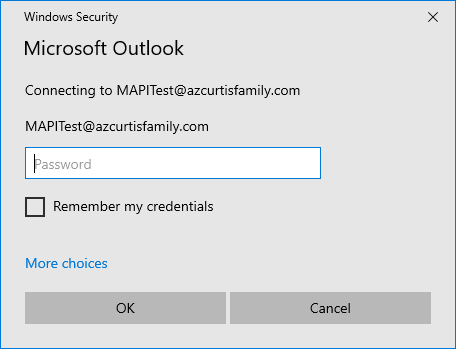
Input your mail account password and check the box to "Remember my credentials". Checking this box saves your credentials in Windows Credential manager. - Click the OK button.
- After you input your password, Outlook will ask you to set your sync settings. This, essentially, is telling Outlook how far back to go to sync your account. By default, 1 year is selected, which is a good place to start. If you have a large mailbox -- say, 5GB or more -- you may want to limit the sync to 6 months or less, if possible. Regardless, you can always change this in Account Settings once the account is set up.
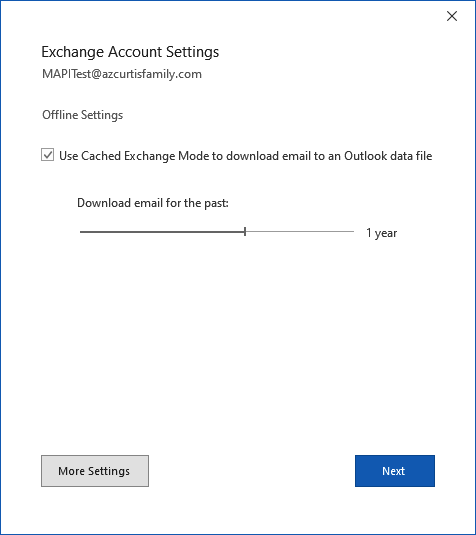
- Click the Next button.
- You will automatically have the account set up in Outlook, and should see the following window:
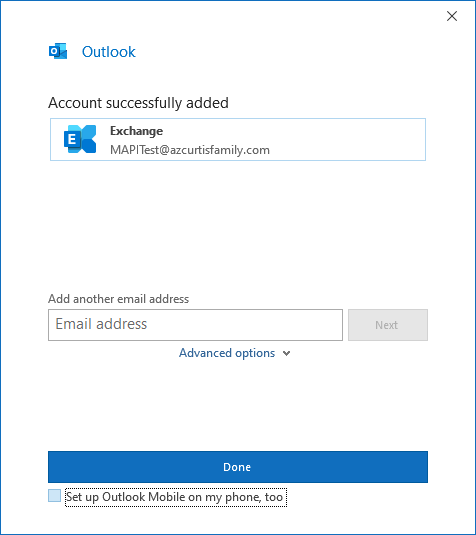
Clicking the Done button will open Outlook -- if you have Outlook set to select a Profile each time you open it, you'll have to select your newly-created Profile from the dropdown menu. Otherwise, Outlook should open and start syncing to your MailWire account.