
With Team Workspace video chat, you can have real-time audio and/or video chat with up to 8 participants at the same time. In addition, each participant has complete control over their own audio and video -- that is, they can turn either on or off as needed and they can manage the microphone and speakers that are used. Participants can also mute others, so if someone is in a noisy environment and they forget to mute their microphone, each participant can mute that person themselves.
Starting a Video Chat
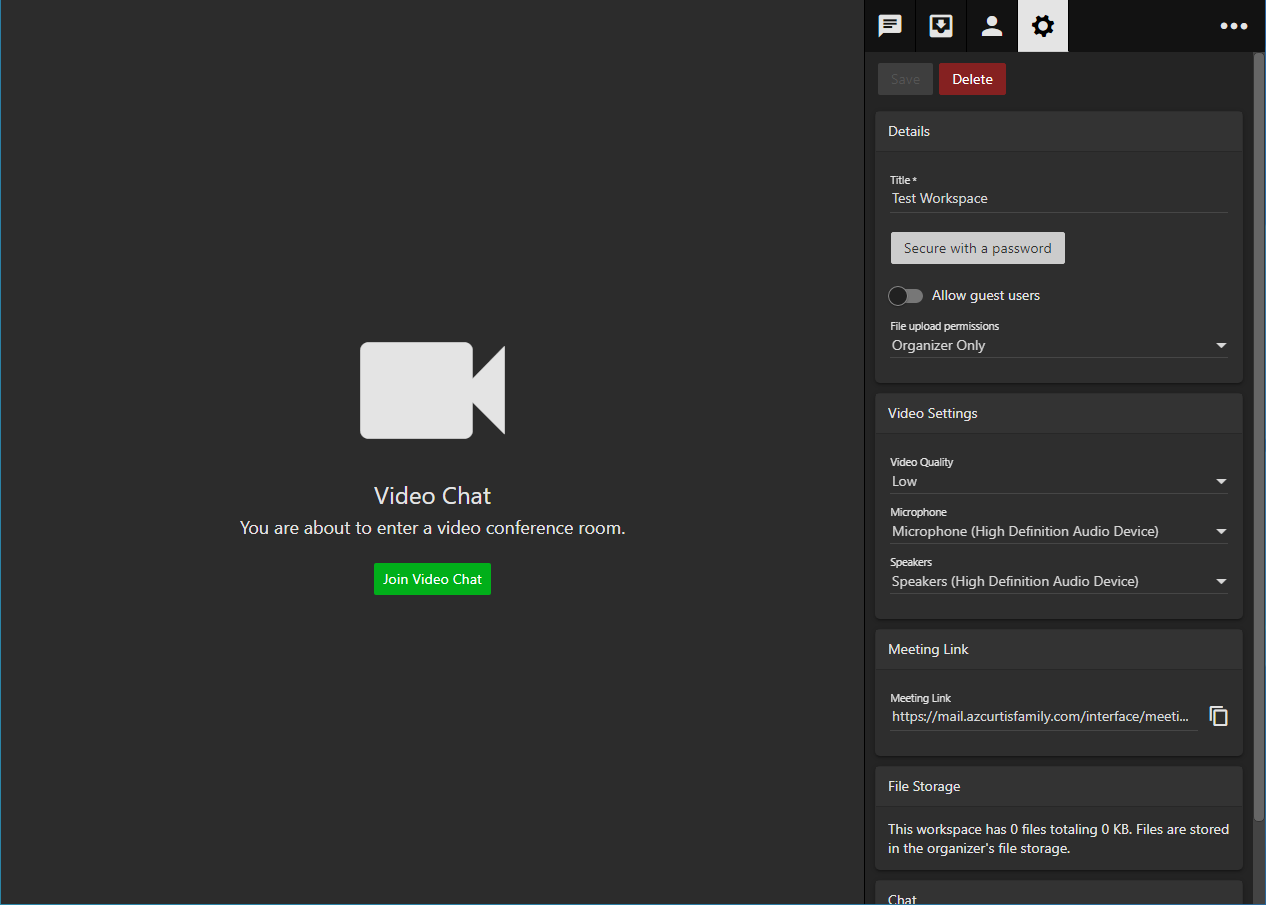
Starting a video chat is extremely simple. All you need to do is enter a Workspace and click on the Join Video Chat button.
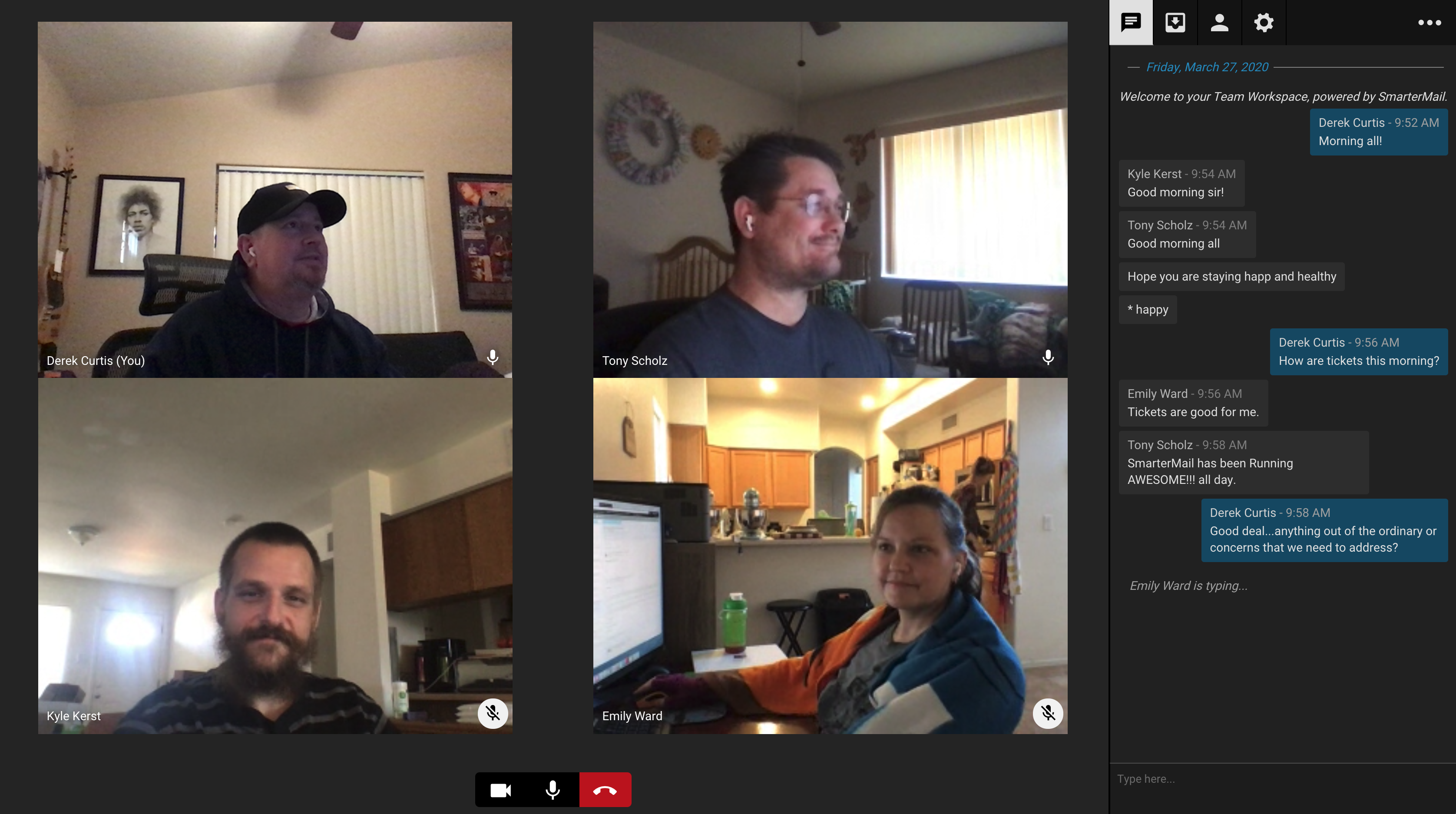
Once you enter the room, you'll see your own audio/video feed as well as the video feed of other participants. As more people join their feeds will also display. If someone turns off their camera, you'll see a blank box with a monogram in the middle of the box, so you know who that's supposed to be.
Video Settings
Participants have some control over the audio and video settings that are used. To modify those settings, simply click on the Settings icon. On the Video Settings card you'll be able to set:
- Video Quality - You can set your video quality from High to Very Low. In cases where a participant is on a poor internet connection, or even using a cellular connection, the Low or Very Low settings may be preferred to help reduce bandwidth.
- Microphone - Team Workspaces will select a default microphone for you. However, if you want to change it to a headset mic or something else, you can do that here.
- Speakers - The default speaker set should be used by default, but if an external source is desired, it can be selected from the dropdown.
A Quick Note
The Team Workspace video chat does require you to allow the use of your microphone and video camera. Depending on your browser settings, this may occur without you needing to take any action. However, if you experience issues with either the audio or video, make sure your browser is not blocking the connection. In addition, if you're using any security software, such as Eset or Malwarebytes, they may need to be checked so that access to the camera and microphone aren't being blocked.